Configuration Guide
In this section we will cover the process of configuring the installed EazeGamseUnitySDK.unitypackage.
Environment
EazeGames platform supports two environments:
- sandbox - for testing purposes. Use this environment in all cases prior release, and don’t forget to switch to production for release.
- production - for production release.
You can easely switch between environments with help of EazeGamesSettings that is located at Assets/EazeGamesSDK/Resources.
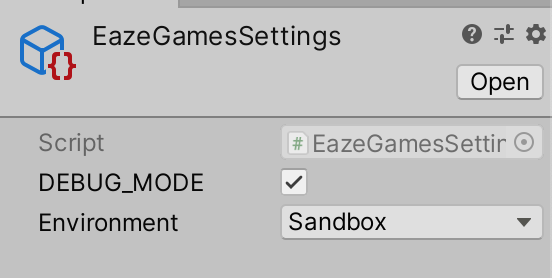
Also EazeGamesSettings contains DEBUG checkbox, that will enable the EazeGamesSDK to log some Debug messages into console.
Important
Use sandbox environment for testing. And don't forget to switch to production environment before you export your production code to Xcode.
Config file
To successfully integrate with EazeGamesSDK, you will be provided with the configuration file EAZConfig.plist. This file will contain the mandatory information for the Game Owner, such as Game Owner ID and Encryption Key for games. You will need to add this file to your application’s bundle. For Unity game you have to put the configuration file in the root of Assets folder: Assets/EAZConfig.plist During testing of the Game, this configuration file will be valid only for sandbox environment. Prior first release, please contact our support team, so that they will duplicate settings from sandbox environment to production environment, so there will be no need to change anything in EAZConfig.plist file.